
Download InputMapper
Map any controller to keyboard, mouse, or virtual Xbox 360 pad. Built for DualShock, DualSense, and Xbox controllers with full macro and profile support.
What Is InputMapper?
A free Windows utility that bridges the gap between your favorite controller and any PC game or application
InputMapper is a free controller mapping program for Windows that lets you use DualShock 3, DualShock 4, DualSense (PS5), Xbox 360, Xbox One, and generic DirectInput/XInput controllers with any PC game or application. The InputMapper download gives you full control over button assignments, analog stick response, trigger sensitivity, and even gyroscope input — turning practically any controller into a customized input device for your PC.
Originally developed as a fork of DS4Windows, InputMapper expanded well beyond its roots. Created by DSDCS (DSD Consulting Services LLC) and maintained by the developer JoshWobbles, the project grew into a standalone tool with broader hardware support and deeper customization. The current release is version 1.7.7452.13622, updated on February 19, 2026, and weighs in at 72.2 MB for the installer package.
How InputMapper Works
At its core, InputMapper sits between your physical controller and your operating system. When you connect a DualShock 4 via USB or Bluetooth, the software reads every button press, stick tilt, and trigger pull, then translates those inputs into whatever output you choose. That output can be a virtual Xbox 360 controller (using the ViGEmBus driver), a virtual DualShock 4, direct keyboard and mouse events, or any combination. This means games that only recognize Xbox controllers can now accept your PS4 pad without issues.
Who Is It For?
The tool is built for PC gamers who own PlayStation or third-party controllers and want them to work with their full game library. It also appeals to power users who need precise macro sequences, per-game profiles, or custom dead zone curves. Accessibility-focused users benefit from the keyboard and mouse emulation, allowing controller-based navigation of desktop apps. InputMapper runs on Windows XP through Windows 11, supporting both 32-bit and 64-bit systems, though 64-bit is recommended for best performance.
Why It Stands Out
Compared to alternatives, InputMapper provides wide hardware coverage in a single application. While DS4Windows focuses specifically on DualShock 4 and DualSense, InputMapper handles DualShock 3 controllers through USB dongles, Xbox pads, and generic DirectInput devices under the same interface. The built-in macro editor, touchpad mapping for DS4, and gyroscope support for motion-based controls give it a feature depth that most free mapping tools lack. Since the source code lives on GitHub, the community can review, fork, and contribute to the project directly.
Key Features
Everything you need to get any controller working exactly the way you want on your Windows PC
Multi-Controller Support
Connect DualShock 3 (via USB adapter), DualShock 4 (V1 and V2), DualSense (PS5), Xbox 360, Xbox One, and generic DirectInput or XInput gamepads. InputMapper detects each controller automatically and applies the correct driver profile so you do not need separate software per device.
Full Button Remapping
Reassign any controller button, D-pad direction, bumper, or trigger to a different controller button, keyboard key, or mouse action. The visual mapping interface shows your controller layout and lets you drag-and-drop assignments, making complex remaps straightforward even for first-time users.
Xbox 360 Emulation (ViGEm)
Emulate a virtual Xbox 360 controller through the ViGEmBus driver. Games that only support XInput will recognize your DualShock or third-party pad as a native Xbox controller, complete with correct button prompts and rumble feedback. No per-game configuration needed once the profile is active.
Virtual Keyboard & Mouse
Map controller sticks to mouse movement and buttons to keyboard keys for applications that have no controller support at all. Adjust mouse acceleration curves and scroll speed independently, letting you browse the web or navigate desktop software from your couch.
Profile Management
Create and save unlimited profiles with different button layouts, sensitivity curves, and dead zone values. Link profiles to specific executables so InputMapper switches automatically when you launch a game. Export and import profiles to share setups with other users or back them up before reinstalling.
Macro Editor
Record multi-step button sequences and assign them to a single controller input. Set delays between each action in the chain, choose whether the macro loops or fires once, and trigger complex combos or repetitive actions with a single press. Useful for fighting games, MMOs, and accessibility needs.
DS4 Touchpad Mapping
Use the DualShock 4 touchpad as a mouse pointer, split it into zones mapped to different buttons, or assign swipe gestures to keyboard shortcuts. The touchpad surface area can be divided into up to four independent tap regions, each with its own action.
Gyroscope & Motion Control
Capture gyroscope and accelerometer data from DualShock 4 and DualSense controllers. Map tilt and rotation to mouse movement for precision aiming in shooters, or use motion input for racing game steering. Sensitivity and dead zone thresholds are fully adjustable.
Dead Zone & Sensitivity Tuning
Fine-tune analog stick dead zones with visual curve editors so you can eliminate stick drift or increase responsiveness. Set separate inner and outer dead zones, adjust response curves from linear to exponential, and configure trigger thresholds for hair-trigger or long-pull behavior.
HidGuardian Integration
Prevent double-input issues by hiding your physical controller from other applications using HidGuardian. When active, only InputMapper can read the raw controller data, which stops games from seeing both the real device and the virtual one at the same time — a common headache with controller emulation tools.
System Requirements
Lightweight enough to run on older hardware while taking advantage of modern systems
InputMapper has been tested on Windows 7 through Windows 11. A 64-bit operating system is recommended for best stability with the ViGEmBus virtual controller driver.
Download InputMapper 1.7
Get the latest version free for Windows — includes ViGEmBus driver and full controller support
InputMapper for Windows
Download InputMapper 1.7 Free • 72.2 MB • Windows Installer (EXE)Filename: InputMapper1.7.7452.13622.exe
MD5: 1b166e39787476748358cca460fe4225
Format: EXE Installer (64-bit)
Screenshots
See InputMapper’s interface and controller mapping in action
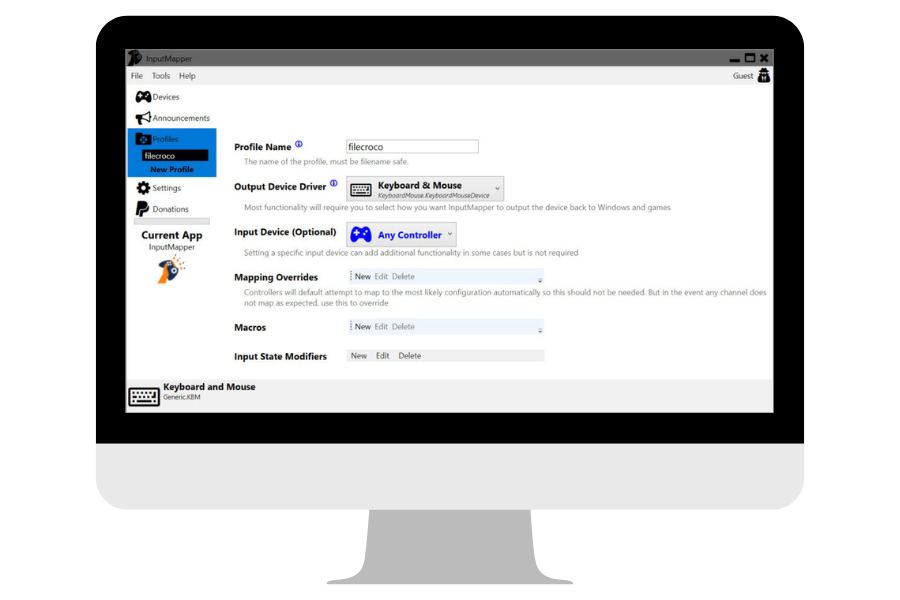
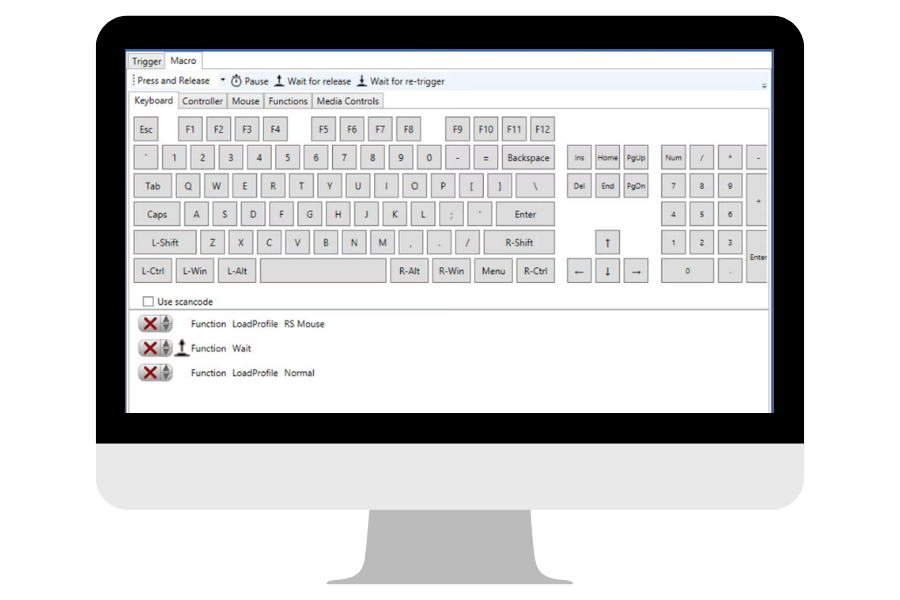
How to Install InputMapper
A complete walkthrough from download to your first custom controller profile
Step 1: Download the Installer
Head over to our download section on this page and click the orange download button. You will get the InputMapper installer file (approximately 72.2 MB). Save it somewhere easy to find — your Downloads folder or Desktop works fine.
Step 2: Run the Installer
Locate the downloaded file and right-click it, then select “Run as administrator.” This is important because InputMapper needs elevated privileges to install device drivers. Follow these steps in the installation wizard:
- Accept the license agreement
- Choose your installation directory (the default path is fine for most users)
- When prompted to install the ViGEmBus driver, click Yes or Install — this driver creates the virtual Xbox 360 and DS4 controllers that games recognize
- Wait for the installation to complete and click Finish
Step 3: Connect Your Controller
Before launching InputMapper, connect your controller to your PC:
- USB: Plug your DualShock 4, DualSense, or Xbox controller directly into a USB port. Windows should install basic drivers automatically.
- Bluetooth: Open Windows Settings, go to Bluetooth & Devices, put your controller into pairing mode (hold Share + PS button on DS4, or the pairing button on Xbox controllers), and pair it.
- DualShock 3: Requires a compatible USB dongle. Plug the dongle in first, then connect the DS3 via USB to pair it.
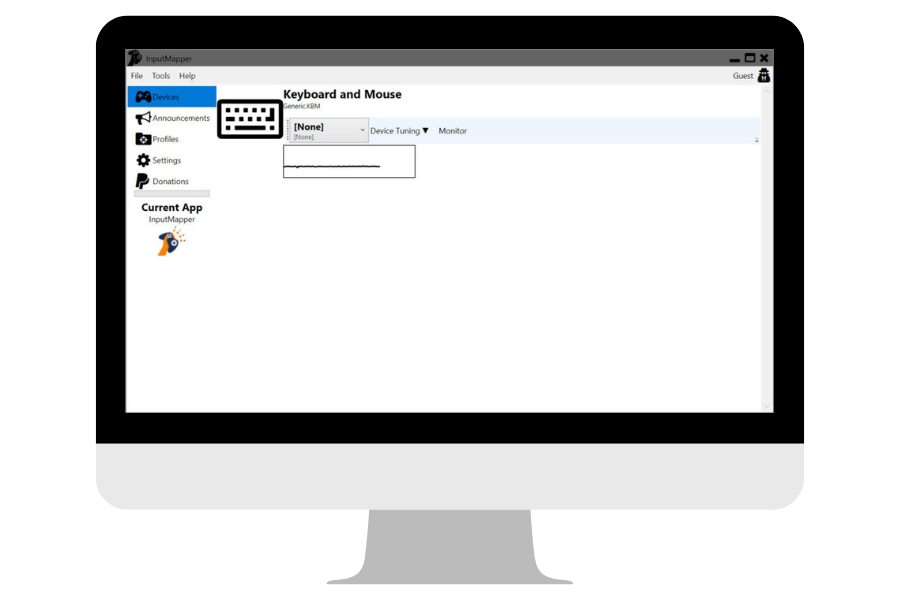
Now launch InputMapper from the Start menu or desktop shortcut. The application should detect your controller within a few seconds — you will see the controller name, connection type, and battery level (for wireless connections) in the main window.
Step 4: Create Your First Profile
With your controller connected and detected, you are ready to configure it:
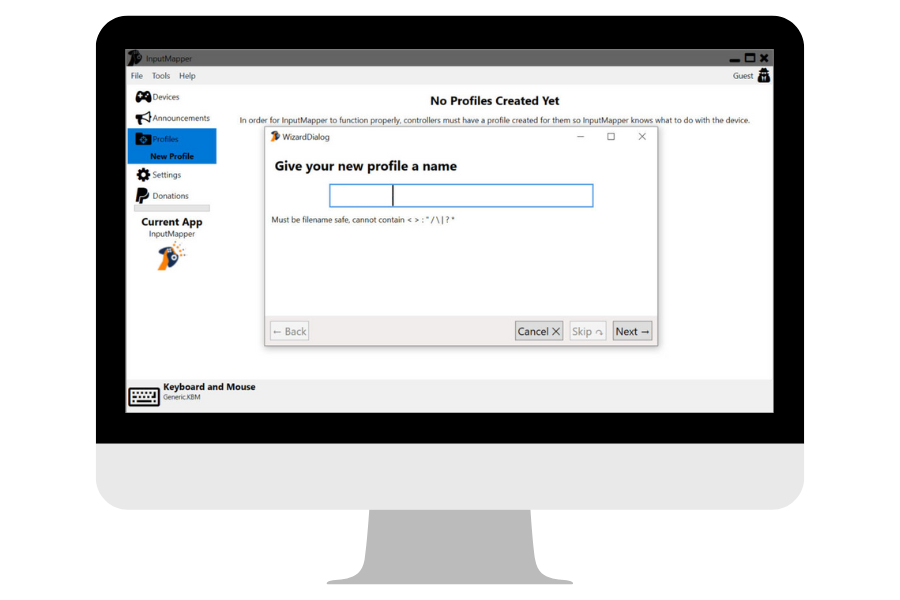
- Click “New Profile” in the profile panel. Give it a descriptive name, like “FPS Games” or “Desktop Navigation.”
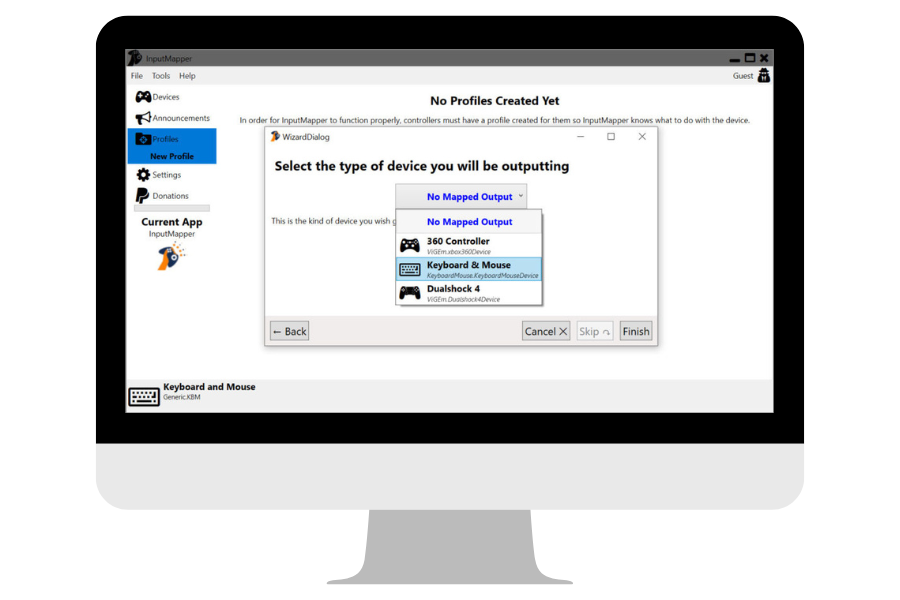
- Choose your output type: Xbox 360 Emulation for most games, DualShock 4 Emulation for PS4-specific games, or Keyboard/Mouse for non-controller applications.
- Remap buttons by clicking on any controller input in the visual diagram and selecting its new assignment from the dropdown menu.
- Adjust analog stick dead zones using the curve editor — drag the curve to increase or decrease the response near the center position.
- Set trigger sensitivity if you want hair-trigger behavior (short travel distance before full activation).
- Click “Start” to activate the profile. Your controller is now remapped according to your settings.
That is it — your controller is configured and ready to go. If you run into double-input issues (where a game sees both your real controller and the virtual one), enable HidGuardian from the settings menu to hide the physical device from other applications.
Frequently Asked Questions
Answers to the most common questions about InputMapper
Is InputMapper free to download?
Yes, InputMapper is completely free to download and use. There are no paid tiers, no trial periods, and no feature restrictions. The full application — including macro editing, profile management, Xbox 360 emulation via ViGEm, and gyroscope mapping — is available at no cost. The project is developed by DSDCS and hosted on GitHub, where anyone can view the source code. Unlike paid alternatives such as reWASD ($6 license), InputMapper gives you the entire feature set without spending anything.
Is InputMapper safe for Windows 11?
Yes, InputMapper is safe for Windows 11 and has been tested on both Windows 10 and Windows 11 64-bit systems. The installer includes the ViGEmBus driver, which is a well-known open-source virtual gamepad driver used by multiple controller mapping tools. Some antivirus programs may flag the ViGEmBus driver during installation because it modifies system-level device settings — this is a false positive and can be safely dismissed. The software does not collect personal data, does not phone home, and does not install adware or bundled third-party software. For extra peace of mind, you can download the source code directly from the GitHub repository and build it yourself.
What controllers does InputMapper support?
InputMapper supports a wide range of controllers: DualShock 3 (via USB adapter/dongle), DualShock 4 (both V1 and V2 hardware revisions), DualSense (PS5 controller), Xbox 360, Xbox One, and generic DirectInput or XInput gamepads. Each controller type has its own detection profile with features specific to that hardware. For example, DS4 and DualSense controllers get touchpad support, light bar color customization, and gyroscope mapping, while Xbox controllers get native XInput passthrough. If your controller shows up as a game device in Windows Device Manager, there is a good chance InputMapper can read it.
How do I connect a PS4 controller to PC with InputMapper?
You can connect a DualShock 4 to your PC either through USB or Bluetooth. For USB, simply plug the controller into any USB port using a micro-USB cable — Windows will install the basic drivers automatically, and InputMapper will detect it within seconds. For Bluetooth, open Windows Settings, navigate to Bluetooth & Devices, then hold the Share and PS buttons on your DS4 simultaneously until the light bar starts flashing rapidly. Select “Wireless Controller” from the Bluetooth device list. Once paired, launch InputMapper and the controller should appear in the device panel with its battery level and connection type displayed.
InputMapper vs DS4Windows — which is better?
Both tools share a common ancestor and handle DualShock 4 mapping well, but they serve slightly different audiences. DS4Windows is lighter weight, actively maintained by a dedicated team, and focuses specifically on DualShock 4 and DualSense controllers. It has a simpler interface and quicker setup. InputMapper covers broader hardware — DualShock 3, Xbox controllers, and generic DirectInput gamepads — all in one application. It also offers a built-in macro editor and more granular dead zone curve controls. If you only use a DS4 or DualSense, DS4Windows may be the simpler choice. If you own multiple controller types or need macros and advanced touchpad zoning, InputMapper offers more under one roof.
How to fix InputMapper not detecting my controller?
Start by checking the basics: make sure your controller is powered on and connected (USB cable firmly seated, or Bluetooth paired in Windows Settings). Then verify these points:
- Confirm the ViGEmBus driver is installed — open Device Manager, look under “System devices” for “Virtual Gamepad Emulation Bus.” If missing, reinstall it from the InputMapper installation folder or download it from the ViGEmBus GitHub page.
- Close any other controller software (DS4Windows, Steam Big Picture overlay, reWASD) that might be claiming exclusive access to the device.
- Try a different USB port or cable — some micro-USB cables are charge-only and do not carry data.
- Run InputMapper as Administrator by right-clicking its shortcut and selecting “Run as administrator.”
If Bluetooth detection fails, remove the controller from Windows Bluetooth settings and re-pair it from scratch.
Does InputMapper work with the PS5 DualSense controller?
Yes, InputMapper supports the PS5 DualSense controller. You can connect it via USB-C cable or Bluetooth, and InputMapper will detect it as a DualSense device. The software can emulate a virtual Xbox 360 or DS4 controller, remap all buttons, and read the DualSense gyroscope for motion input. Adaptive trigger and haptic feedback features have partial support — the controller will rumble normally, but the nuanced adaptive trigger resistance that PS5 games use is not fully replicated through virtual controller emulation on PC. For full button remapping and Xbox 360 emulation, the DualSense works exactly like a DS4 in InputMapper.
What are the system requirements for InputMapper?
InputMapper is lightweight and runs on most Windows PCs. The minimum requirements are any modern processor, 2 GB of RAM, roughly 150 MB of free disk space, and a USB port for wired controllers (or a Bluetooth adapter for wireless). The software supports Windows XP through Windows 11, though 64-bit Windows 10 or 11 is recommended for the best experience with the ViGEmBus driver. You do not need a dedicated GPU — InputMapper uses minimal system resources and runs in the background without noticeable performance impact. The installer download is 72.2 MB.
How to set up InputMapper for keyboard and mouse mapping?
Create a new profile in InputMapper and set the output type to “Keyboard/Mouse” instead of Xbox 360 or DS4 emulation. From there, click on any controller input in the visual diagram and choose the keyboard key or mouse action you want it to trigger. For analog sticks mapped to mouse movement, adjust the sensitivity slider to control how fast the cursor moves. You can set the left stick to WASD keys for movement, the right stick to mouse movement for camera control, triggers to left/right mouse clicks, and face buttons to number keys or other shortcuts. Save the profile and click “Start” to activate it. This setup is useful for desktop navigation, browser games, and applications that have no built-in controller support.
How to install the ViGEmBus driver for InputMapper?
The ViGEmBus driver is bundled with the InputMapper installer and installs automatically during setup. If you skipped it or need to reinstall, download the latest ViGEmBus release from its official GitHub repository (github.com/ViGEm/ViGEmBus/releases). Run the ViGEmBus_Setup.exe as Administrator, follow the prompts, and reboot your PC when asked. After rebooting, open Device Manager and check under “System devices” — you should see “Virtual Gamepad Emulation Bus” listed. Then launch InputMapper and Xbox 360 emulation will work correctly. Without this driver, InputMapper can still remap buttons to keyboard and mouse, but it cannot create virtual Xbox or DS4 controllers.
InputMapper keeps crashing on startup — how do I fix it?
Startup crashes usually stem from one of three issues: a corrupted ViGEmBus driver installation, a conflict with another controller tool running in the background, or outdated .NET Framework components. Try these fixes in order:
- Uninstall and reinstall the ViGEmBus driver, then reboot your PC.
- Close DS4Windows, Steam, or any other controller management software before launching InputMapper.
- Make sure .NET Framework 4.6.2 or later is installed (check via Windows Settings > Apps > Optional Features).
- Run InputMapper as Administrator.
- If the crash persists, delete the InputMapper configuration folder at %AppData%\InputMapper and restart the app with fresh settings.
If none of that works, check the GitHub Issues page for your specific error message — someone else may have reported the same problem with a known fix.
Does InputMapper support Bluetooth controllers?
Yes, InputMapper fully supports Bluetooth connections for DualShock 4, DualSense, and Xbox controllers that have Bluetooth capability. Your PC needs a Bluetooth adapter (built-in or USB dongle) that supports Bluetooth 4.0 or later. Pair the controller through Windows Bluetooth settings first, then launch InputMapper — it will detect the wireless controller and show the battery level in the device panel. Bluetooth connections may have slightly higher input latency (1-4 ms more) compared to USB, which is negligible for most games but noticeable in competitive fighting or rhythm games. For the lowest latency, use a wired USB connection.
How do I create and manage custom profiles?
Open InputMapper with your controller connected, then click the “New Profile” button in the profile panel. Name the profile something descriptive (like the game or use case), choose your output type (Xbox 360, DS4, or Keyboard/Mouse), and configure your button mappings, dead zones, and sensitivity. Click “Save” when finished. You can create as many profiles as you want and switch between them from the profile dropdown. To link a profile to a specific game, use the “Auto-Profile” feature: select the game’s .exe file and associate your profile with it. Whenever that game launches, InputMapper will switch to the linked profile automatically. Profiles can be exported as files for backup or sharing with other users.
Is InputMapper still being updated?
InputMapper received its most recent update on February 19, 2026 (version 1.7.7452.13622). Development has historically been intermittent, with periods of active work followed by longer gaps. The project is hosted on GitHub under the InputMapper organization, and the repository accepts pull requests from the community. While it may not receive monthly updates like DS4Windows, the software remains functional on current Windows versions including Windows 11. For users who want the most actively maintained alternative, DS4Windows has a more frequent release schedule, though InputMapper still works reliably for its supported controller types.
How to uninstall InputMapper completely?
Open Windows Settings, go to Apps & Features (or “Installed apps” on Windows 11), find “InputMapper” in the list, and click Uninstall. The standard uninstaller removes the application files but may leave the ViGEmBus driver and configuration data behind. To fully clean up:
- Uninstall InputMapper through Windows Settings or Control Panel.
- Separately uninstall “ViGEm Bus Driver” from the same Apps list if you no longer need virtual controller emulation.
- Delete the configuration folder at %AppData%\InputMapper for a complete cleanup.
- If you installed HidGuardian, uninstall it from Device Manager under “System devices.”
Reboot your PC after removing the drivers to ensure all device changes take effect.
Does InputMapper work on Mac or Linux?
No, InputMapper is a Windows-only application. It relies on Windows-specific drivers (ViGEmBus, HidGuardian) and APIs that do not exist on macOS or Linux. If you need controller mapping on other platforms, consider these alternatives: on macOS, Joystick Doctor or the built-in Game Controller settings handle basic remapping. On Linux, AntiMicroX is an open-source controller-to-keyboard mapper that works well, and Steam Input handles most controllers natively within the Steam client on all platforms. For a cross-platform paid option, reWASD supports Windows only but covers the broadest range of advanced features.
Does InputMapper work offline?
Yes, InputMapper works fully offline after installation. The software does not require an internet connection to detect controllers, create profiles, remap buttons, or emulate virtual controllers. All processing happens locally on your machine. The only time you need internet access is to download the installer itself and to check for updates. Once installed, you can use InputMapper on a completely air-gapped system without any issues.
Where is the official download for InputMapper?
The original InputMapper website (inputmapper.com) is no longer active and redirects to an unrelated site. The official and safest source for InputMapper downloads is the GitHub releases page at github.com/InputMapper/InputMapper/releases. You can also download the latest version from our download section on this page, which links directly to the official GitHub release. Avoid downloading InputMapper from unofficial third-party sites, as those versions may be outdated, modified, or bundled with unwanted software. Always verify the file size (72.2 MB for the current installer) to confirm you have the genuine package.
How do I fix double-input issues in games?
Double input happens when a game reads both your physical controller and the virtual controller that InputMapper creates, causing every button press to register twice. The fix is to enable HidGuardian in InputMapper’s settings menu. HidGuardian hides the physical controller from all applications except InputMapper, so the game only sees the virtual Xbox 360 or DS4 controller. If HidGuardian is not installed, you can download it separately from its GitHub page. Another workaround is to open the game’s controller settings and manually disable or ignore the duplicate device. In Steam, you can also go to Controller Settings and uncheck support for the physical controller type while letting Steam pass through InputMapper’s virtual device.
Can I use InputMapper with Steam games?
Yes, but you need to be aware of potential conflicts with Steam Input. Steam has its own built-in controller management that can interfere with InputMapper’s virtual controllers. For the best results, open Steam, go to Settings > Controller, and disable “PlayStation Configuration Support” and “Xbox Configuration Support” so Steam does not try to remap the virtual controller that InputMapper already created. If you use Big Picture mode, also disable the Steam overlay controller features. With those settings adjusted, InputMapper’s Xbox 360 emulation works normally with Steam games, and you get the benefit of InputMapper’s more granular dead zone, macro, and profile features on top of Steam’s game library.